November 21, 2025—5 min
Kinesis (Radius Velocity)
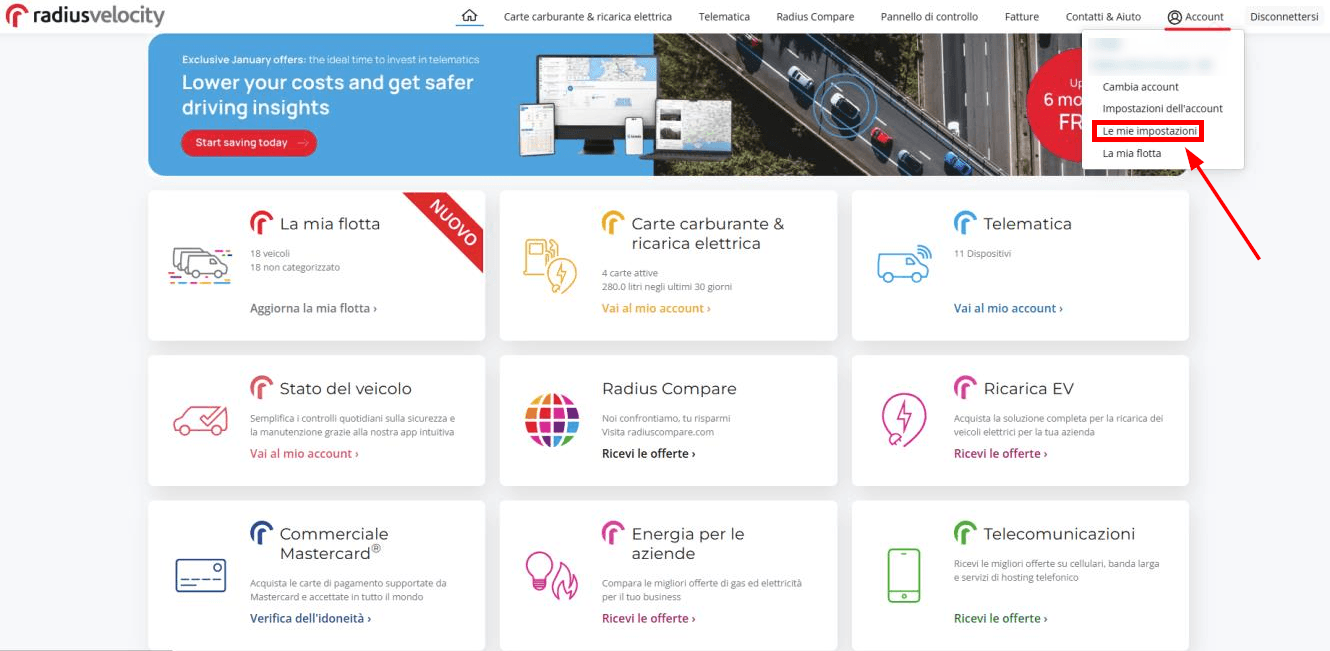
1. Log in to your Kinesis admin account at https://www.velocityfleet.com/accounts/login/, open the drop-down menu in the top-right corner and select "My settings"
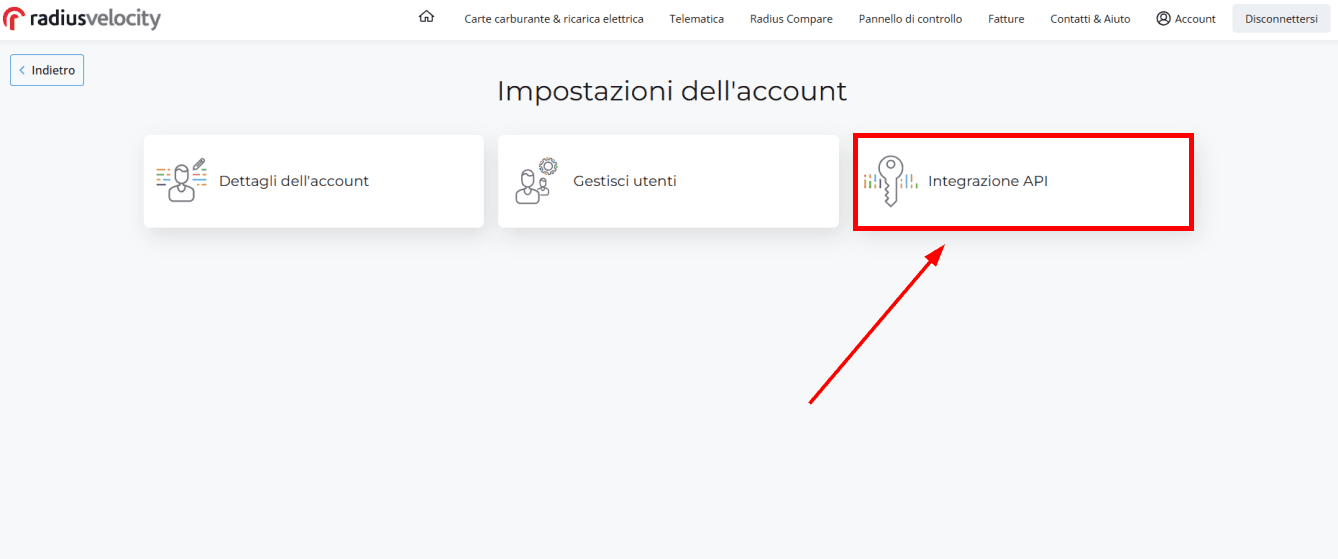
2. Select "API Integration"
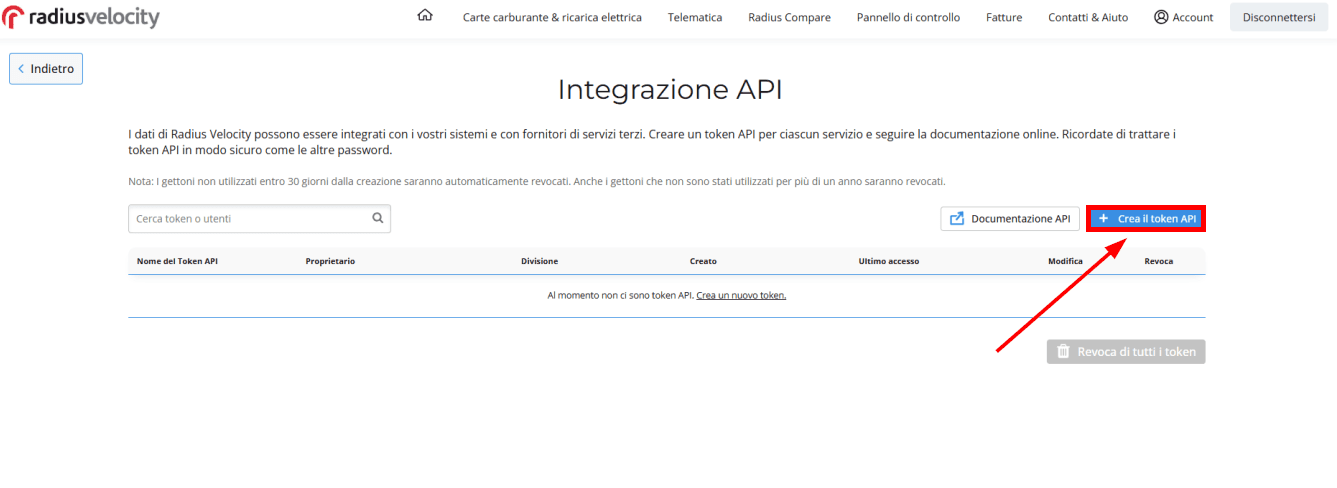
3. On the right side click the blue "Create API token" button
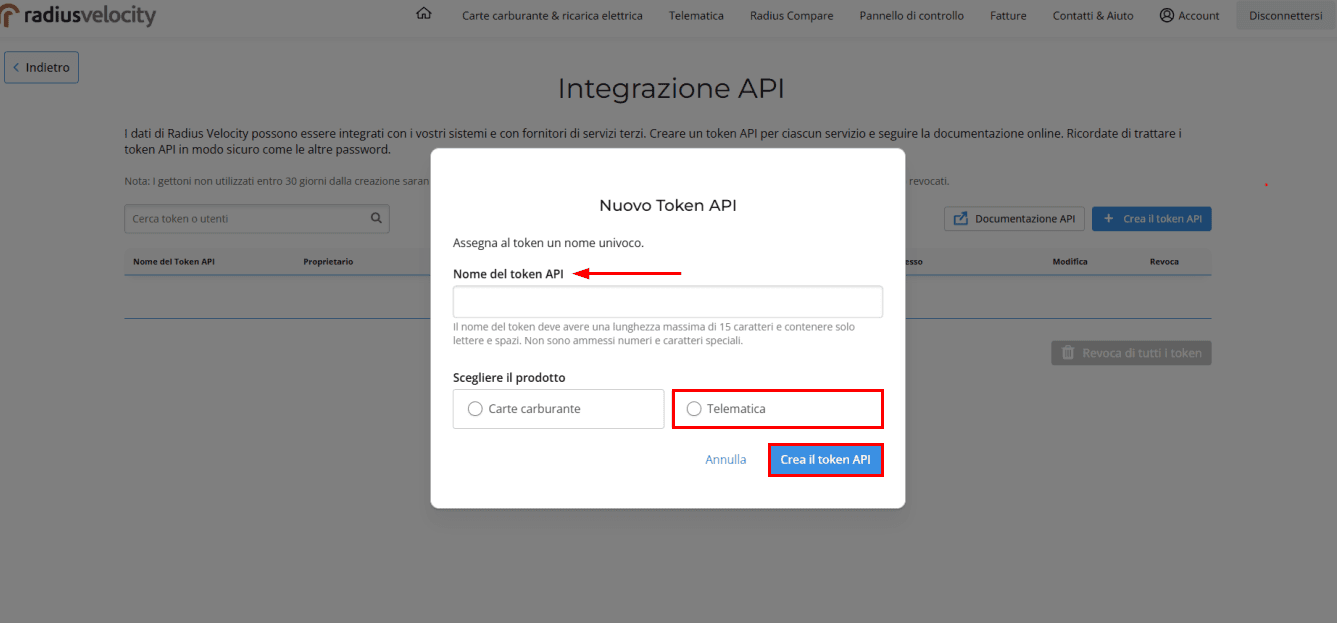
4. Enter a token name (e.g. CO3), select the "Telematics" option and click "Create API token"
5. Click "Copy Token" and save the token in a safe place. Once you close the window, the token will no longer be visible
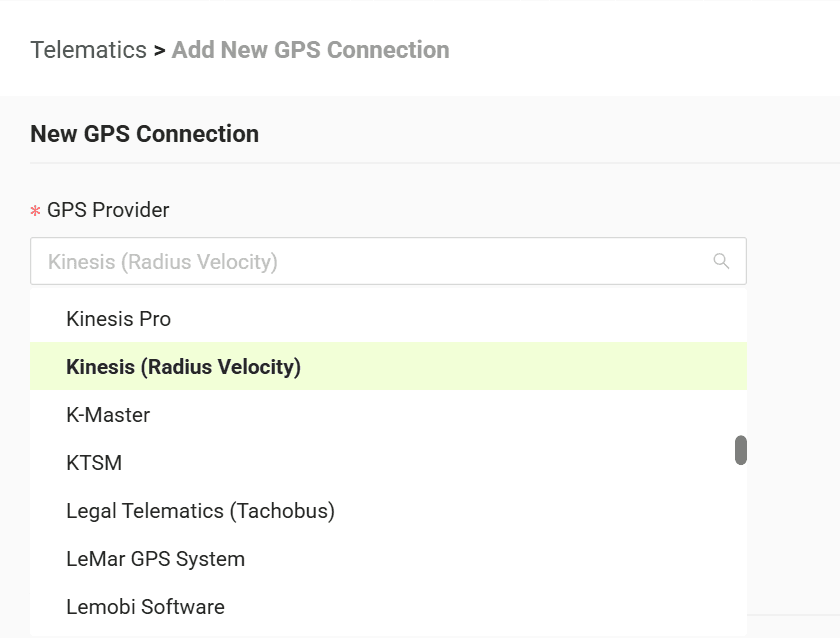
6. Go to the "Telematics" tab on CO3 website and select "Add New GPS Connection" or click the link https://track.co3.io/#/telematic-accounts/create
7. Select "Kinesis (Radius Velocity)" as your GPS provider from the list
8. In the form paste the token into the "API key" field
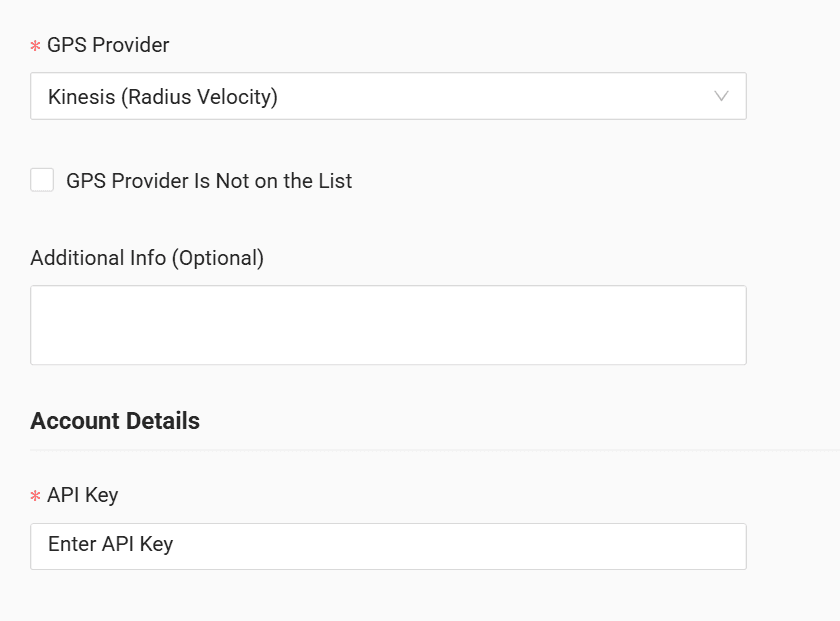
9. Click "Submit"
10. If the access data is correct, the account configuration will be successful
Do you have questions?
Contact us at carrier@co3.io