October 06, 2026—5 min
Emtrack (extended)
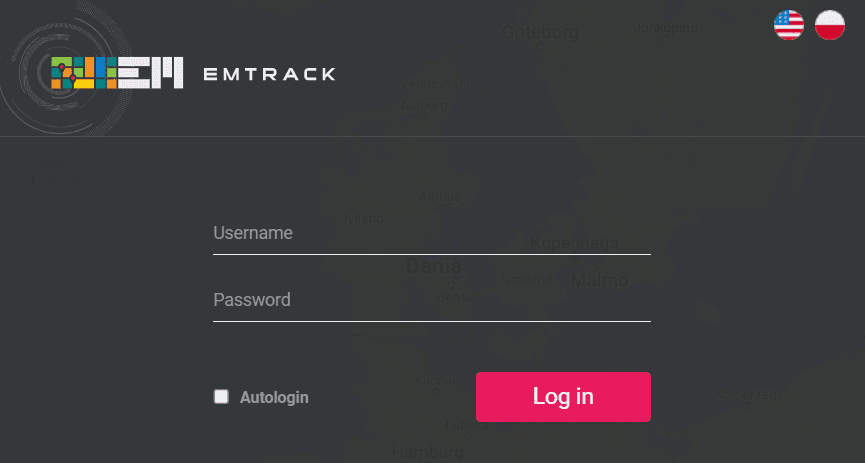
1. Go to https://emtrack.eu/app/
2. Log in to your account
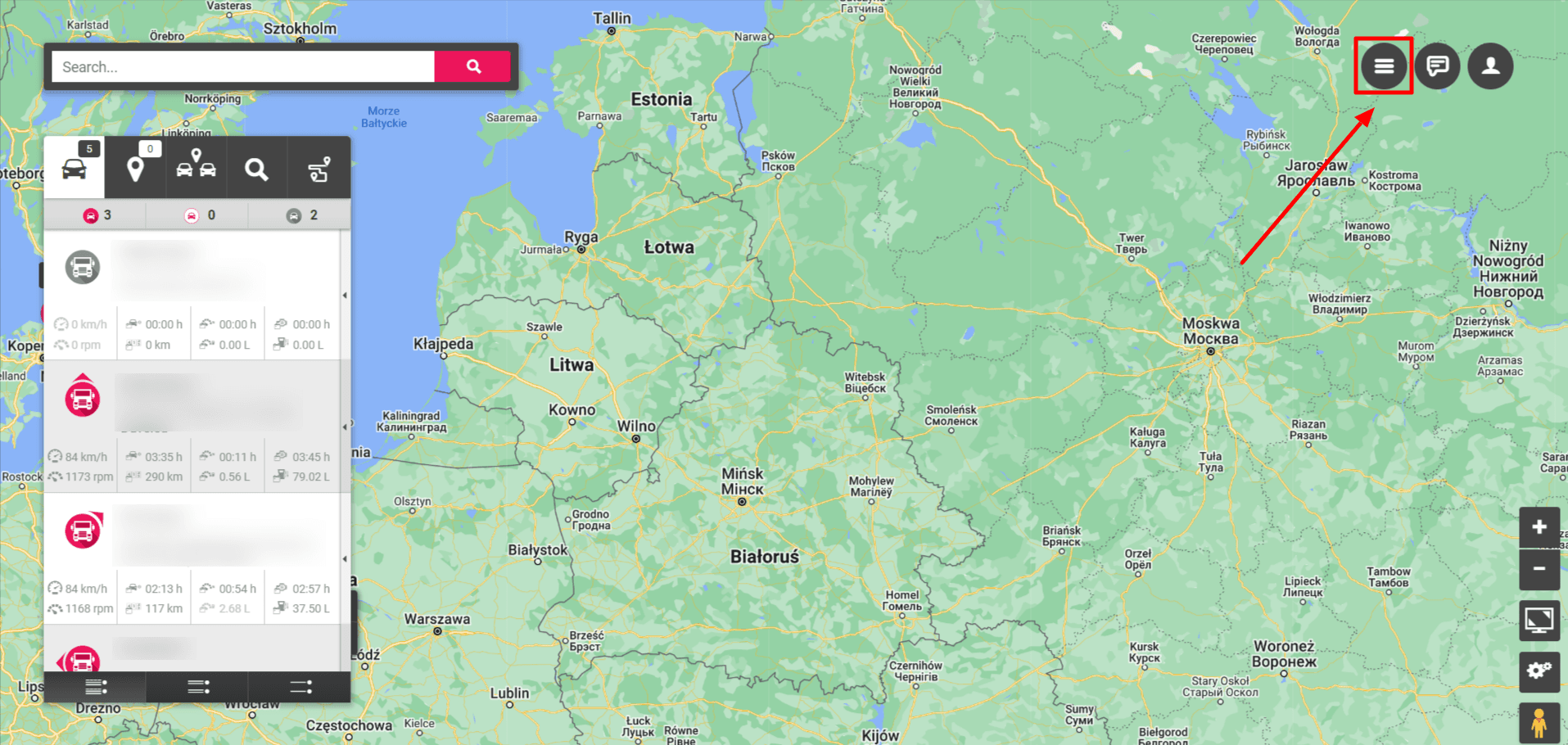
3. Click on the three horizontal lines
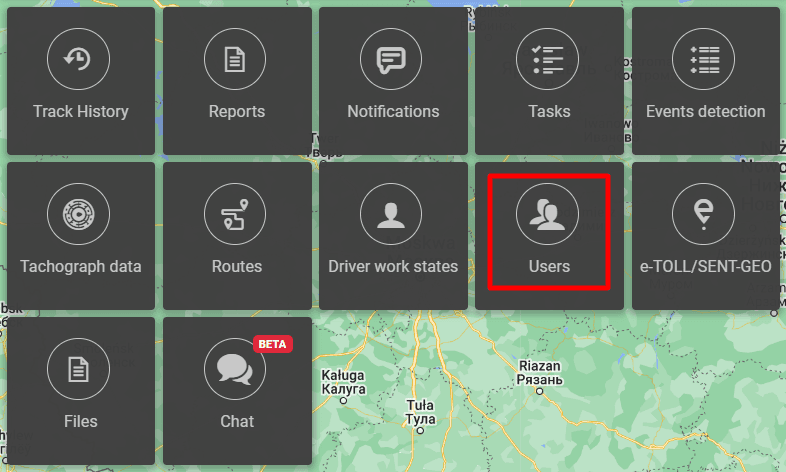
4. Select “Users”
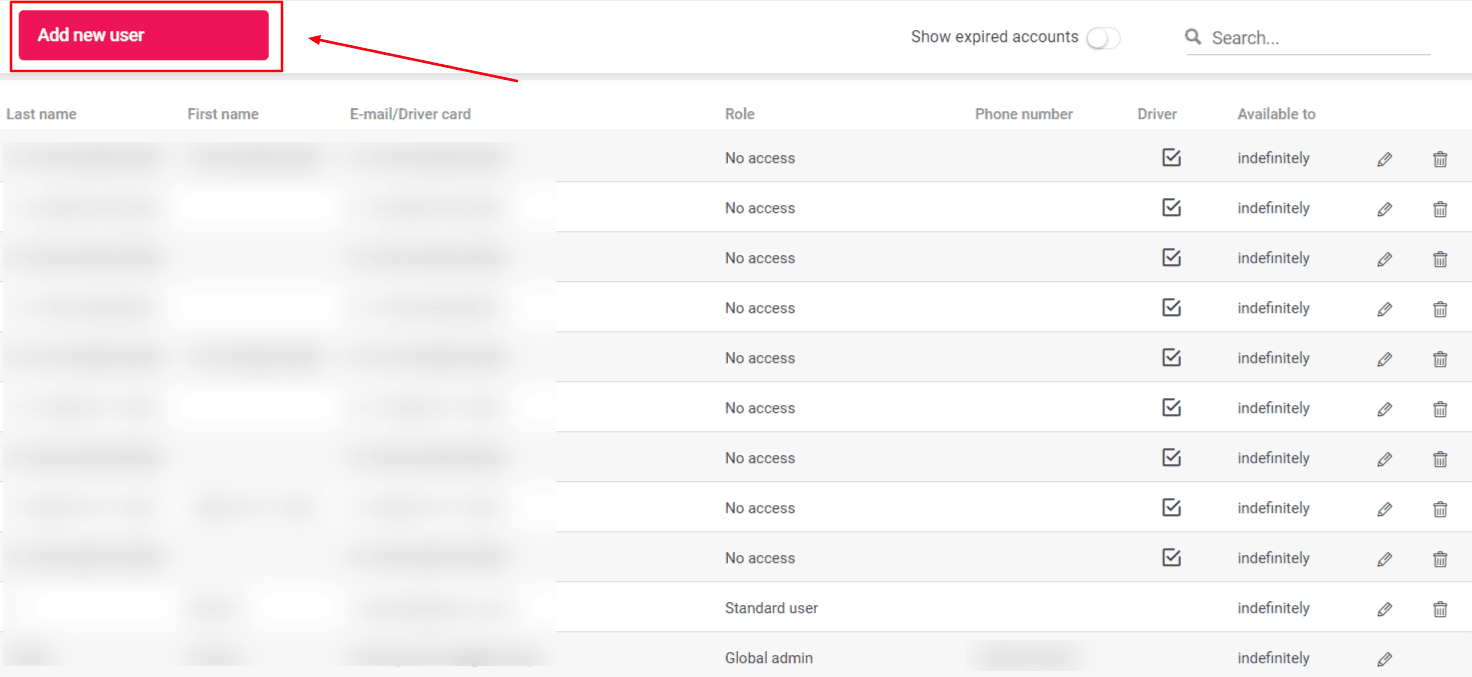
5. Select “Add new user”
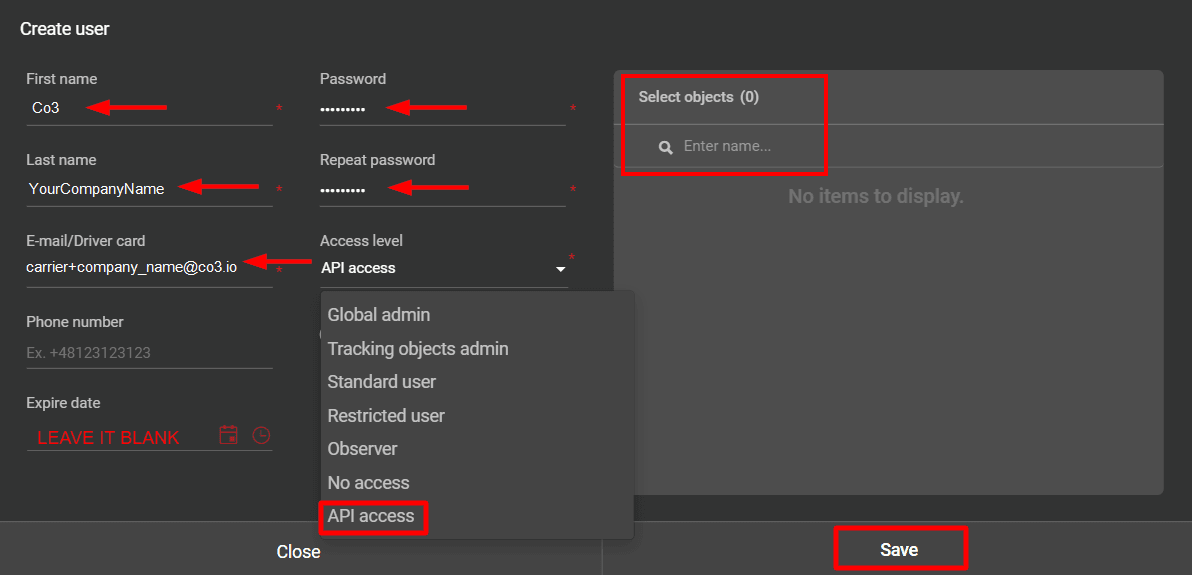
6. Fill in the “First name”, “Last Name”, “E-mail/Driver card”, “Password”, “Repeat password” fields, and set “Access level” to “API access” Leave the “Expire date” field empty! In the “Select objects” section, select the vehicles that should be visible in CO3. Click “Save”
7. Contact Emtrack support (kontakt@emtrack.eu), give them the e-mail of the created user and ask them to enable the API Extended service and send you the API token
8. Go to the "Telematics" tab on CO3 website and select "Add New GPS Connection" or click the https://track.co3.io/#/telematic-accounts/create
9. Select your GPS provider from the list
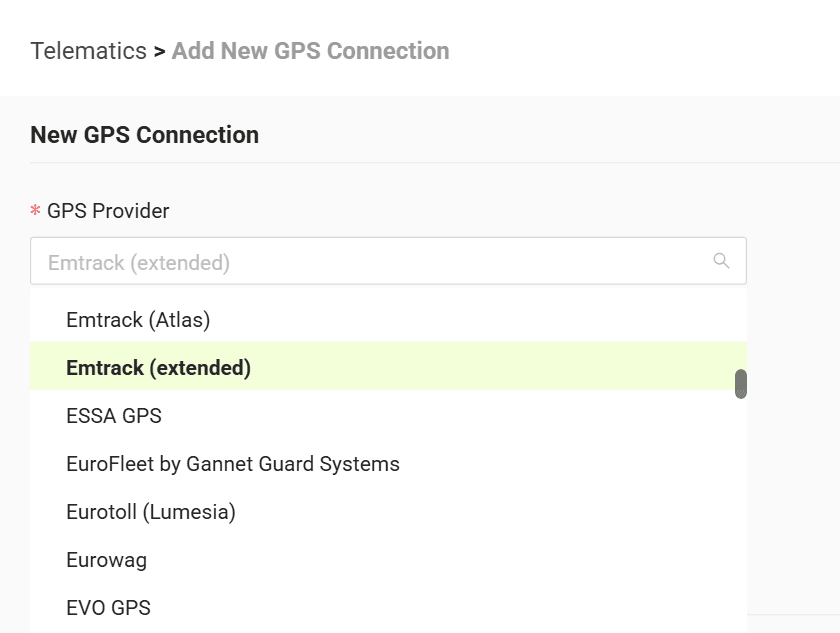
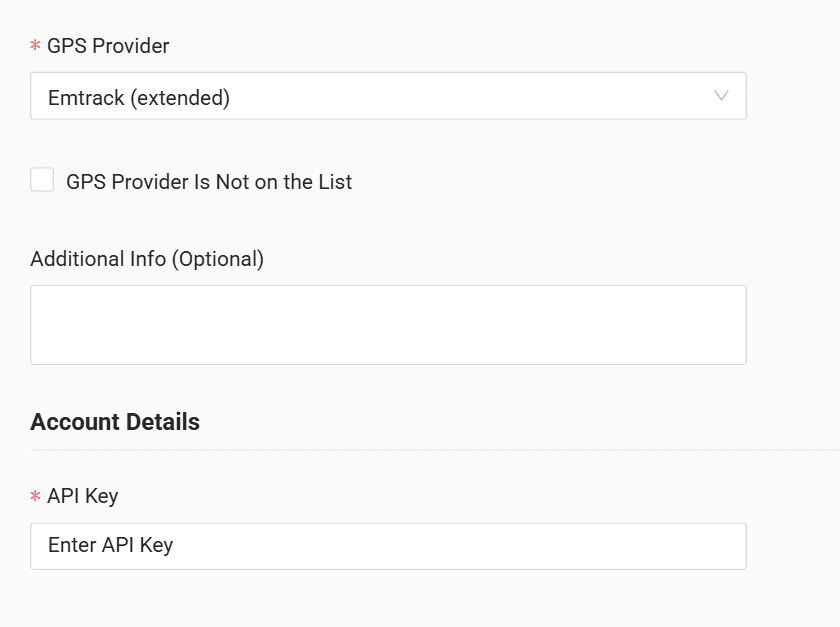
10. In the “API Key” field enter the token received from Emtrack
11. Click "Submit"
12. If the access data is correct, the account configuration will be successful
Do you have questions?
Contact us at carrier@co3.io