May 29, 2025—5 min
Navixy
1. Log in to your Navixy account
2. Go to "Account Settings"->"API Keys", then click the "+" button to add a new key
3. Enter the key name and click "Save"
4. Copy the key
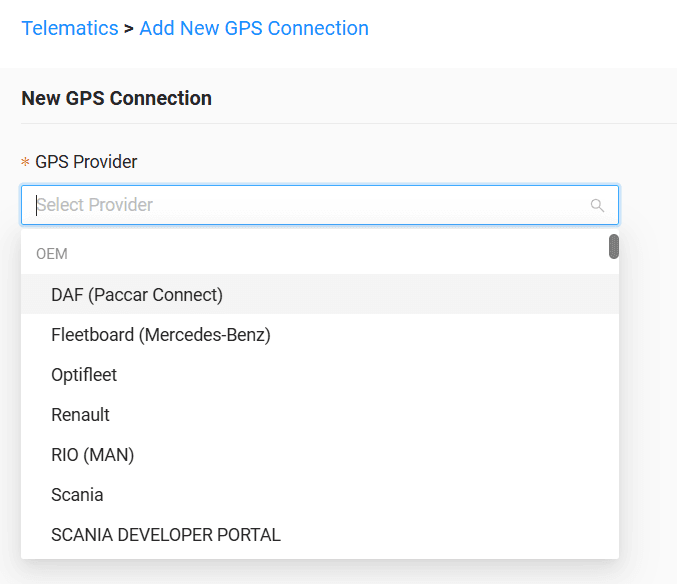
5. Go to the "Telematics" tab on the CO3 website and select "Add New GPS Connection" or click the link https://track.co3.io/#/telematic-accounts/create
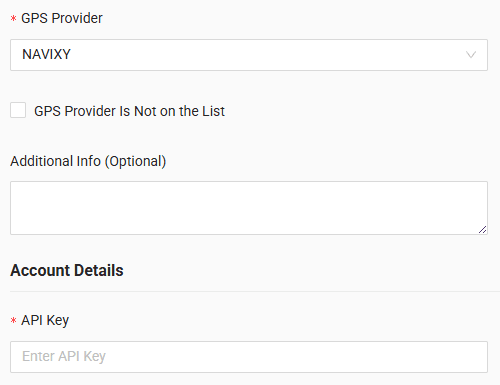
6. Select your GPS provider from the list
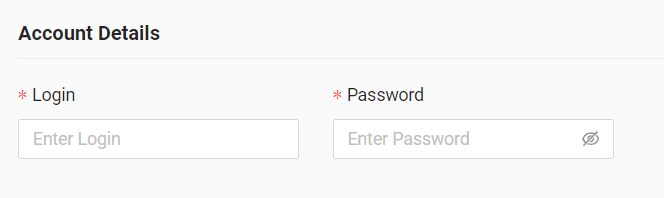
7. In the form enter the created API key
8. Click "Submit"
9. If the access data is correct, the configuration will be completed successfully
Do you have questions?
Contact us at carrier@co3.io