May 29, 2025—5 min
Geotab
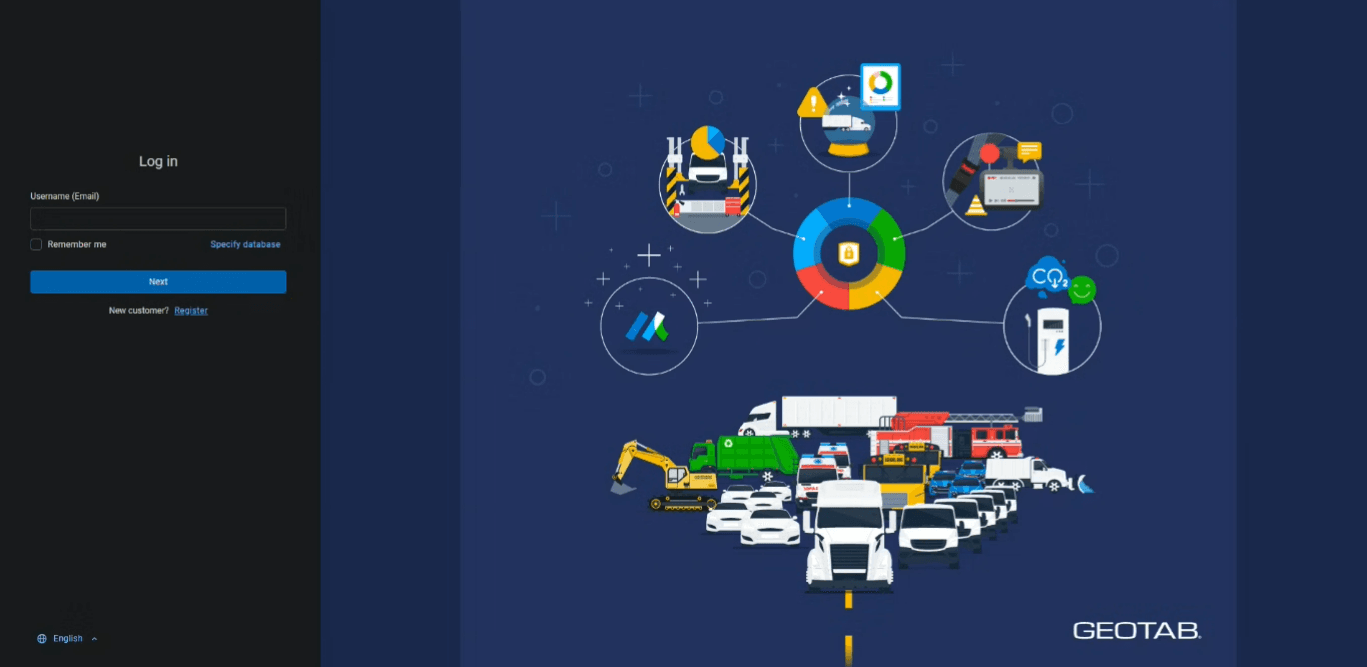
1. Open https://my.geotab.com and log in to your Geotab administrator account. Enter your username, which is your e-mail address
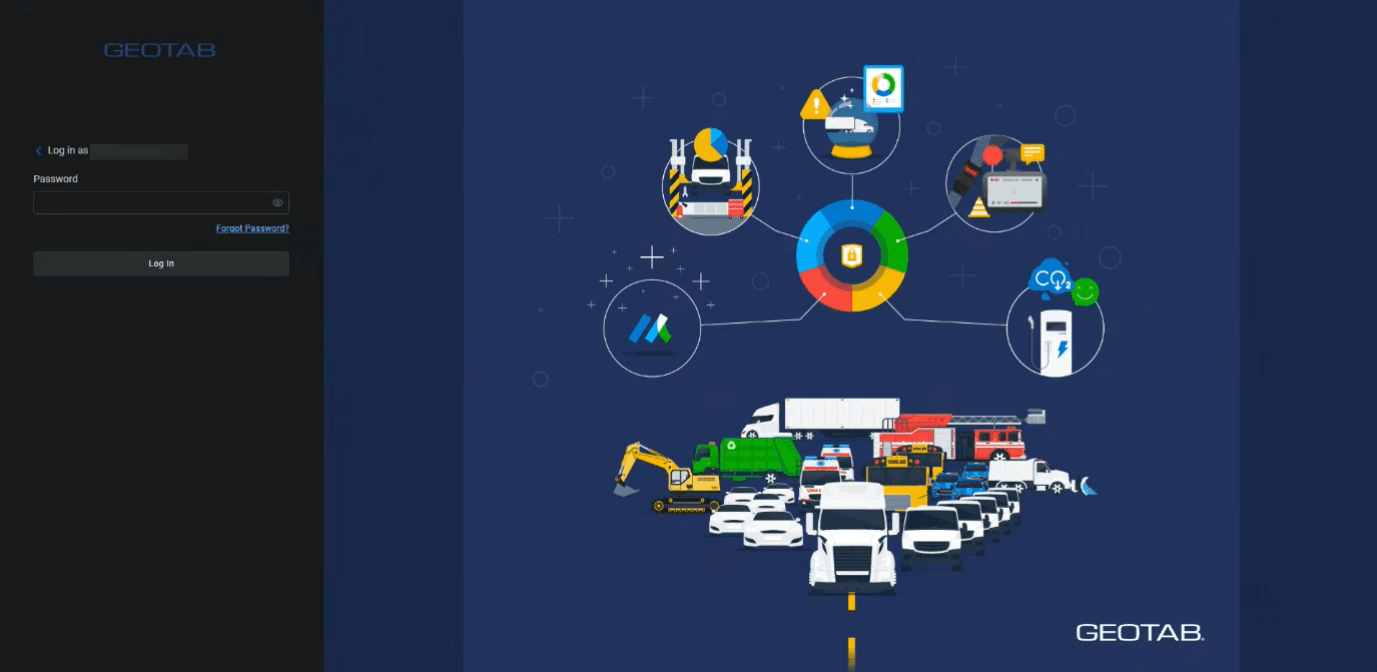
2. Enter your administrator account password
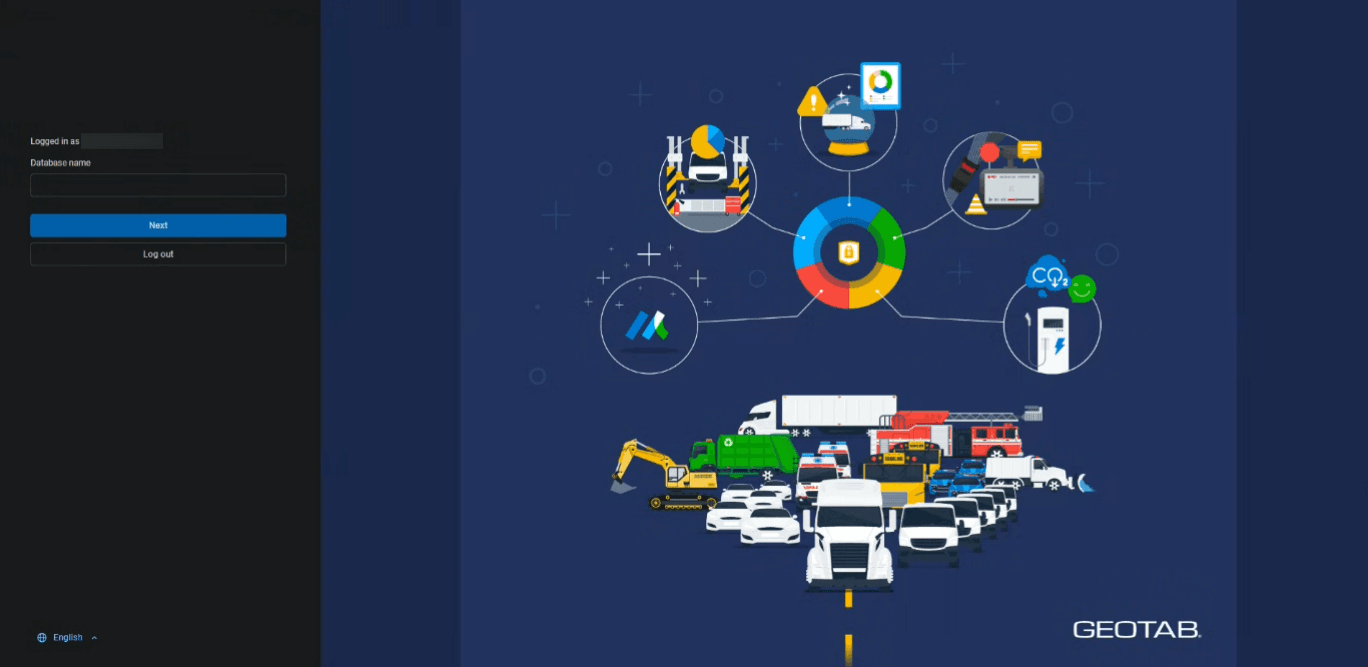
3. Enter your database name. You can find it in the URL after logging in — for example, for the address my.geotab.com/companyXYZ/, the database name is companyXYZ
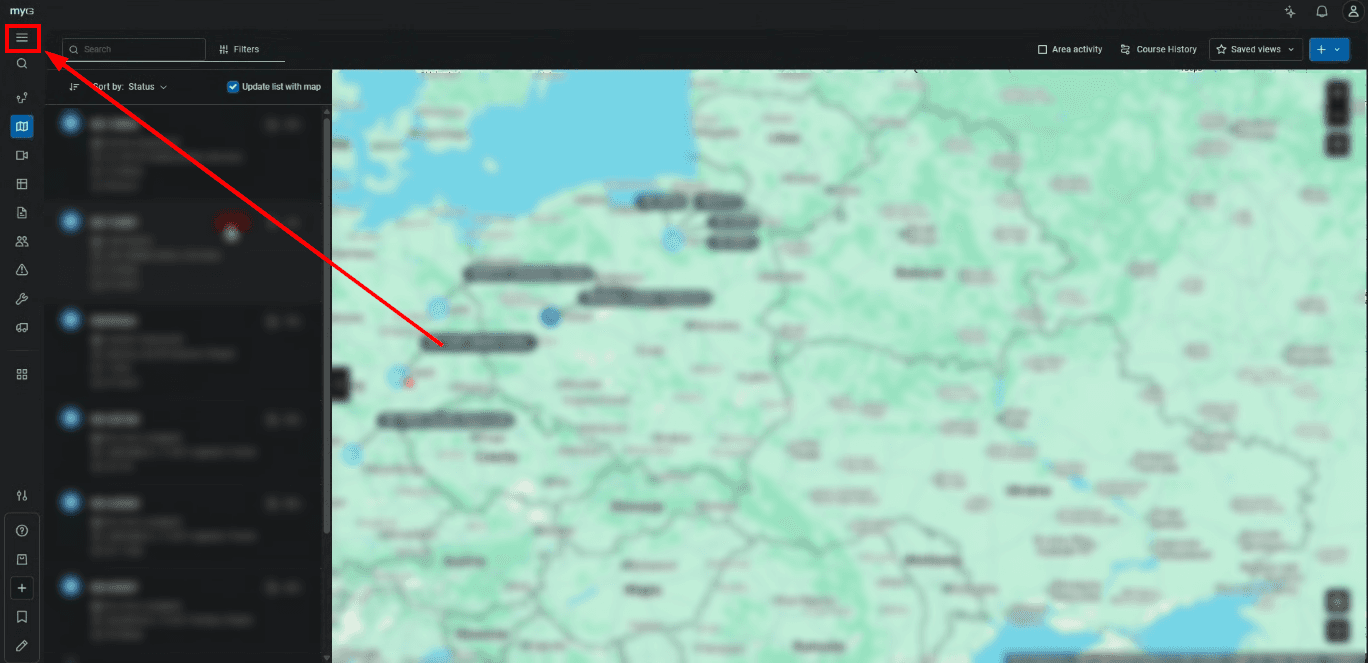
4. Open the main menu
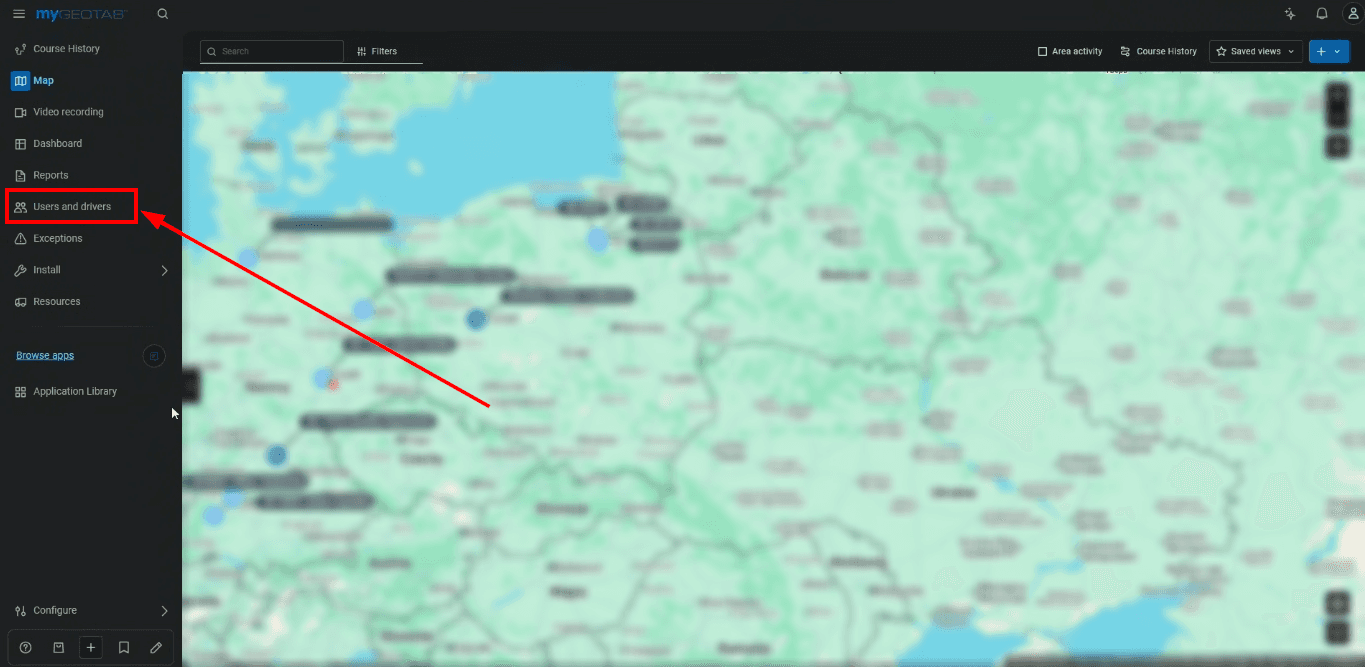
5. Select the "Users and drivers" section
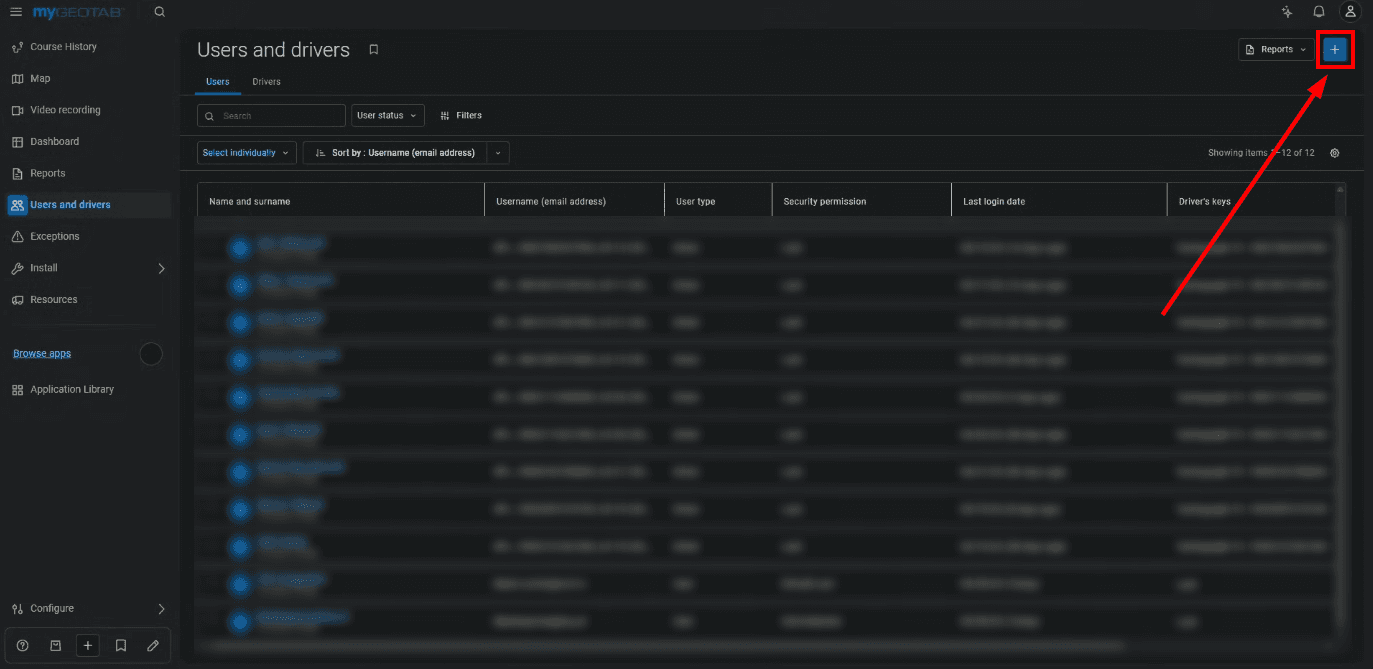
6. Click the "+" button in the top-right corner to add a new user
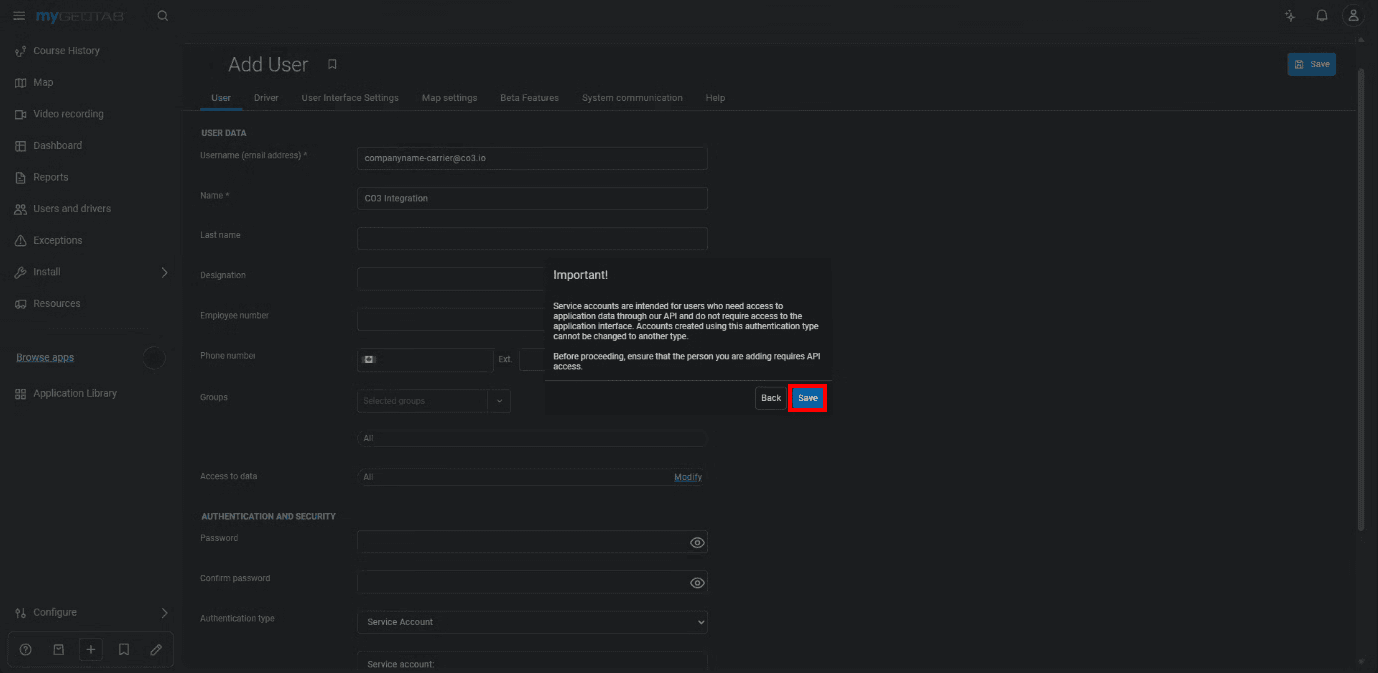
7. Enter a username in the format "companyname-carrier@co3.io". In the "First name" field, enter "CO3 Integration". Set a strong password, select "Service Account" as the "Authentication type", and set "Security clearance" to "Default User" (or another role with view-only permissions). Click "Save"

8. If a service account confirmation prompt appears, confirm it by clicking "Save"
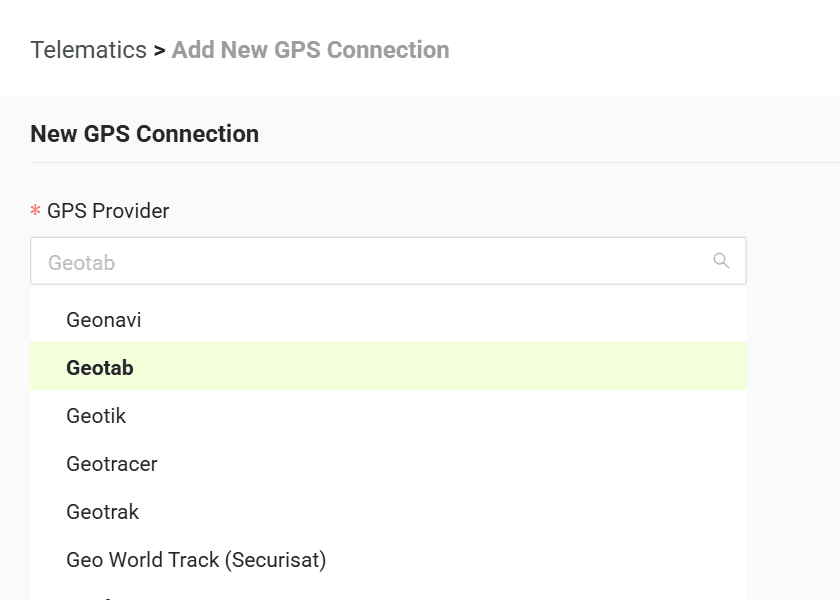
9. Go to the "Telematics" tab in CO3 and select "Add New GPS Connection" or open the link https://track.co3.io/#/telematic-accounts/create
10. Select your GPS provider from the list
11. Fill in the CO3 form with the account credentials you created: username, password and database name (company name)
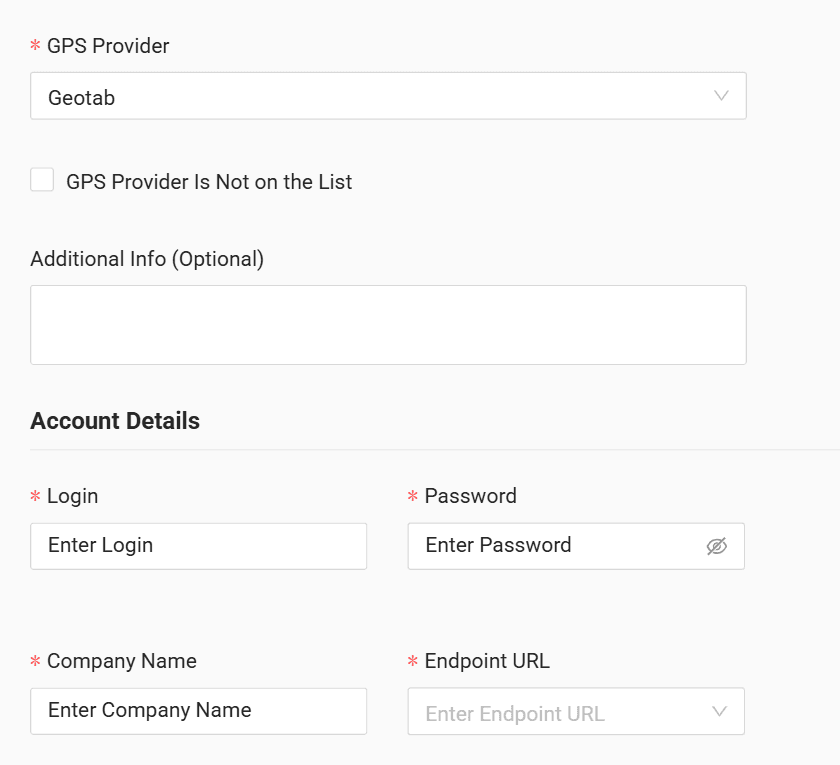
12. Click "Submit"
13. If the access data is correct, the account configuration will be successful
Do you have questions?
Contact us at carrier@co3.io