May 29, 2025—5 min
Geotab
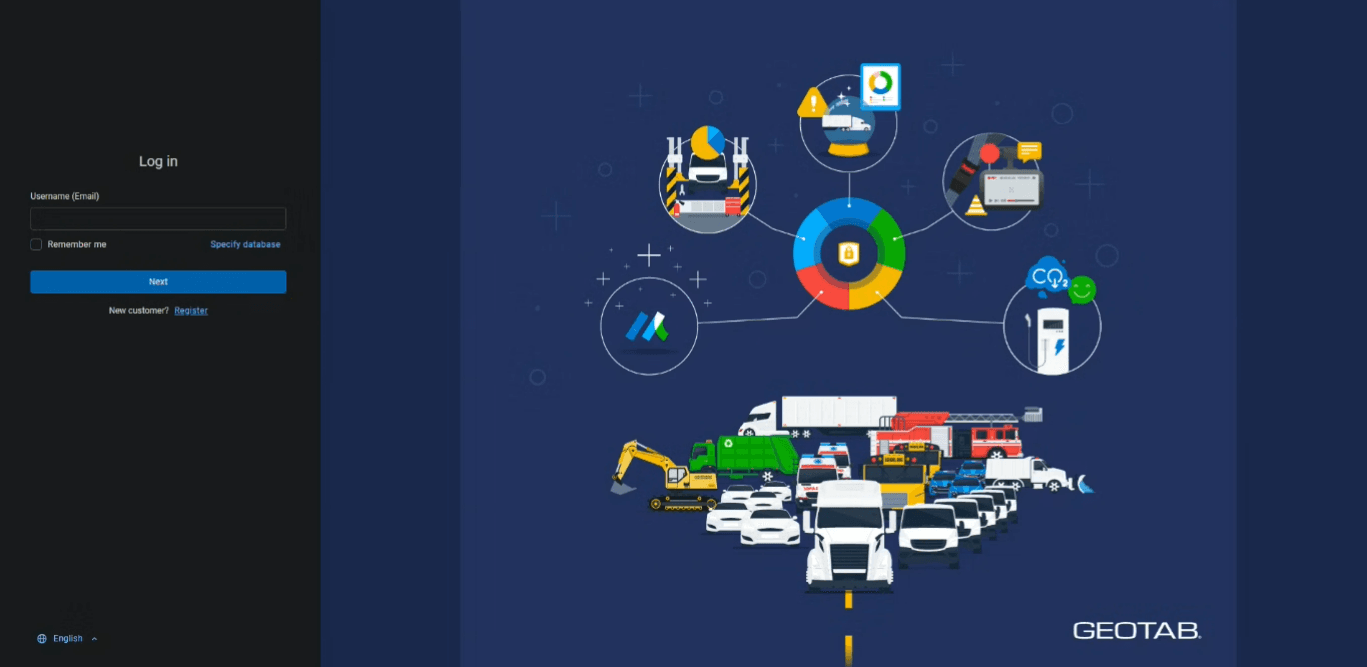
1. Open https://my.geotab.com and log in to your Geotab administrator account. Enter your username, which is your e-mail address
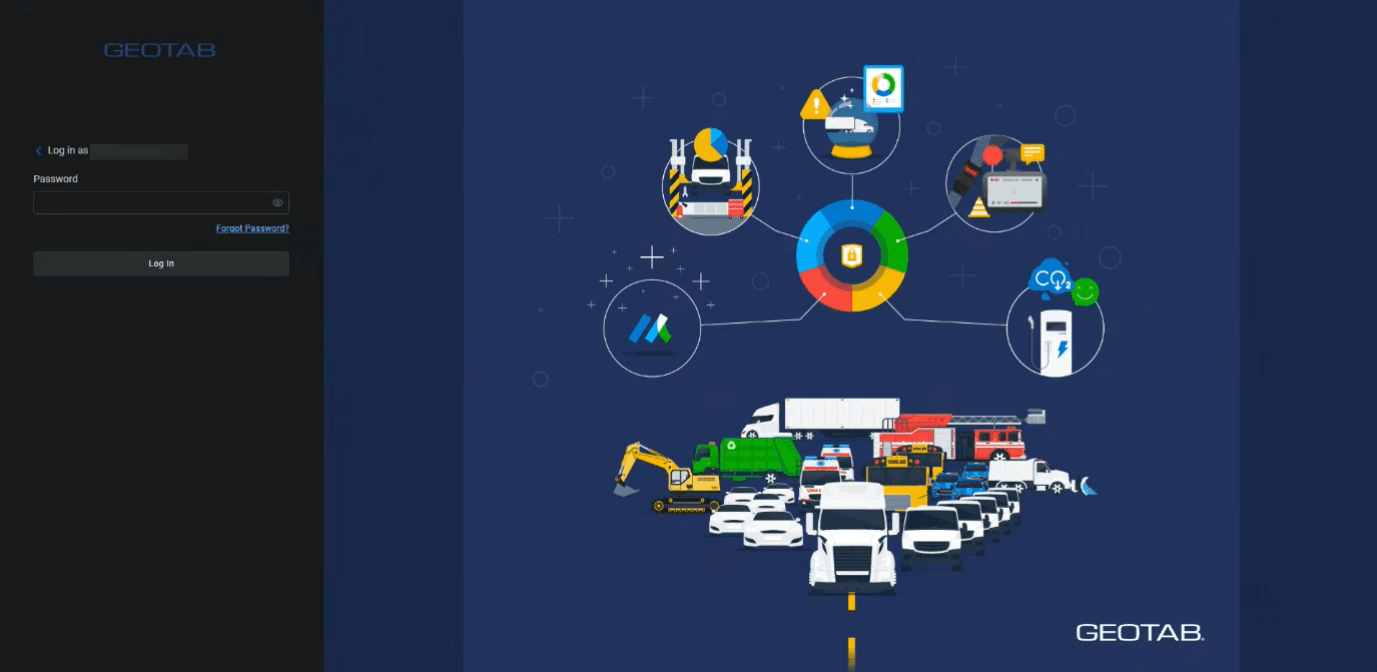
2. Enter your administrator account password
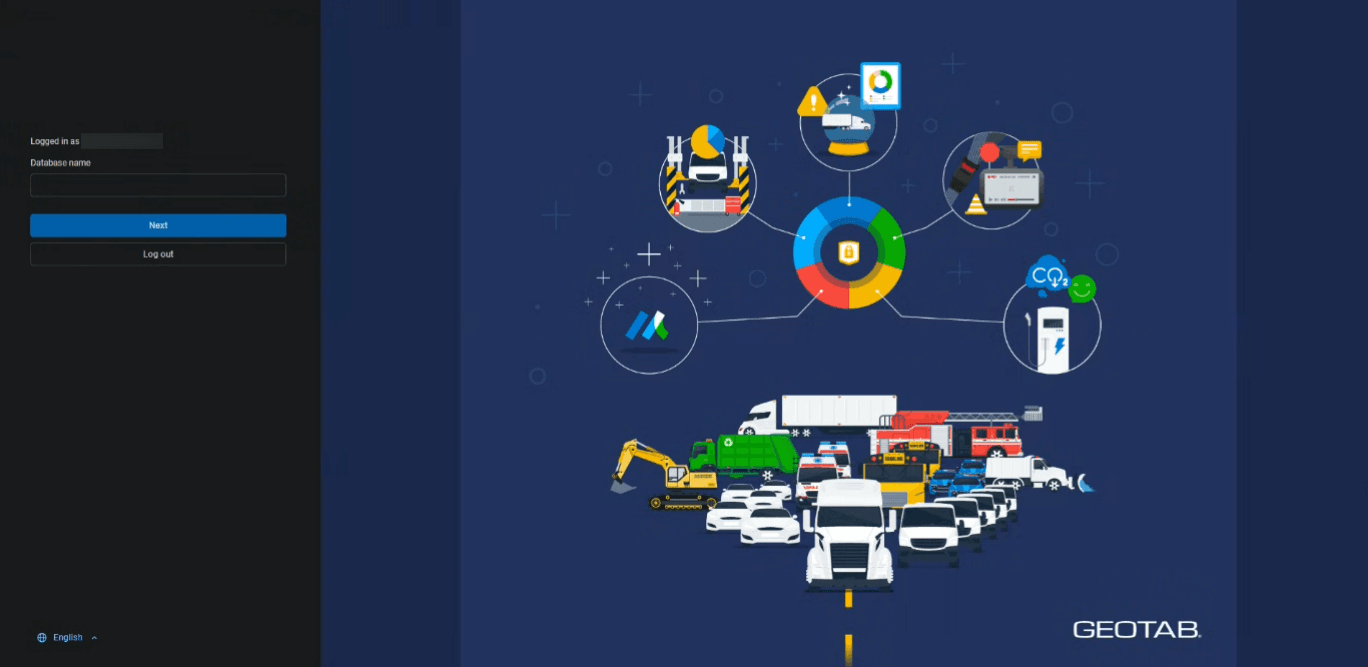
3. Enter your database name. You can find it in the URL after logging in — for example, for the address my.geotab.com/companyXYZ/, the database name is companyXYZ
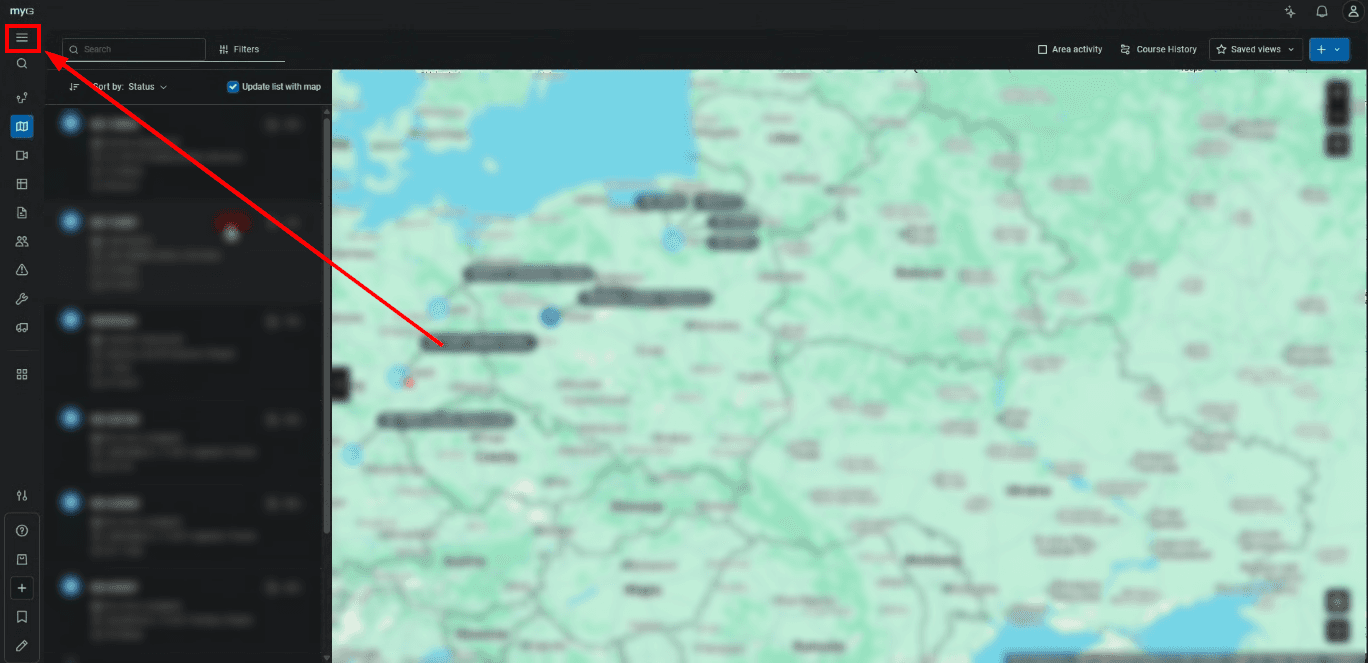
4. Open the main menu
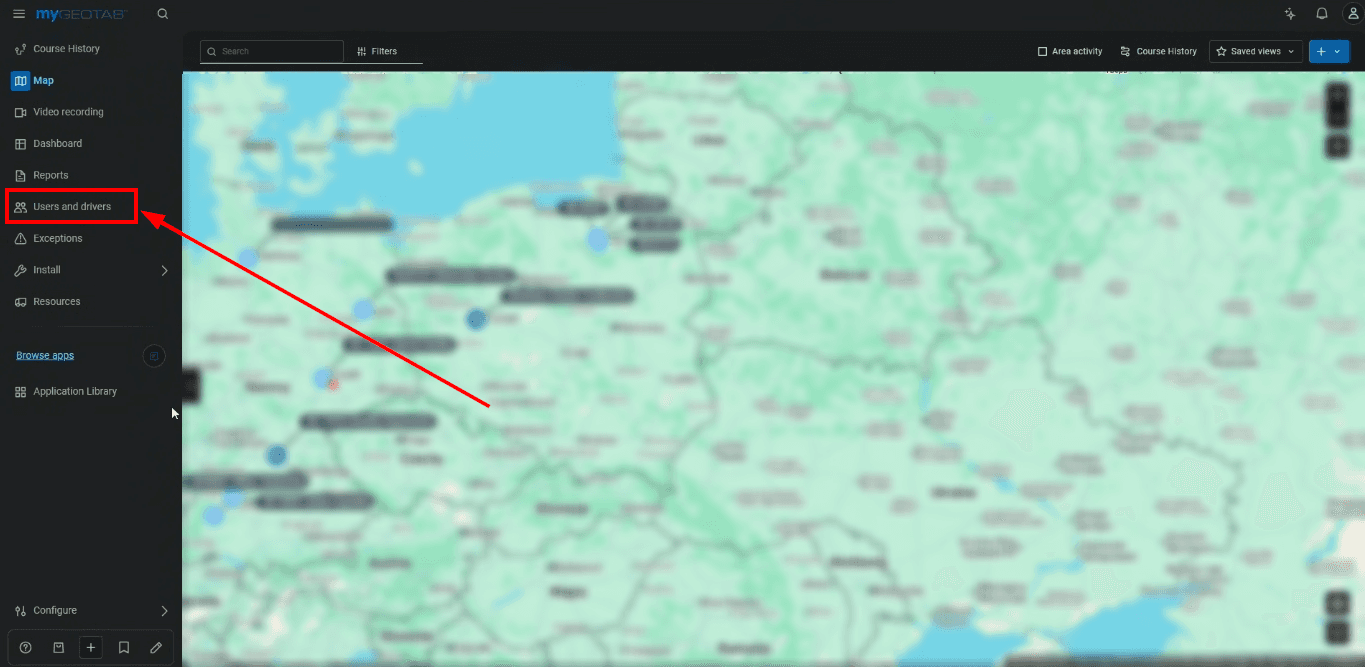
5. Select the "Users and drivers" section
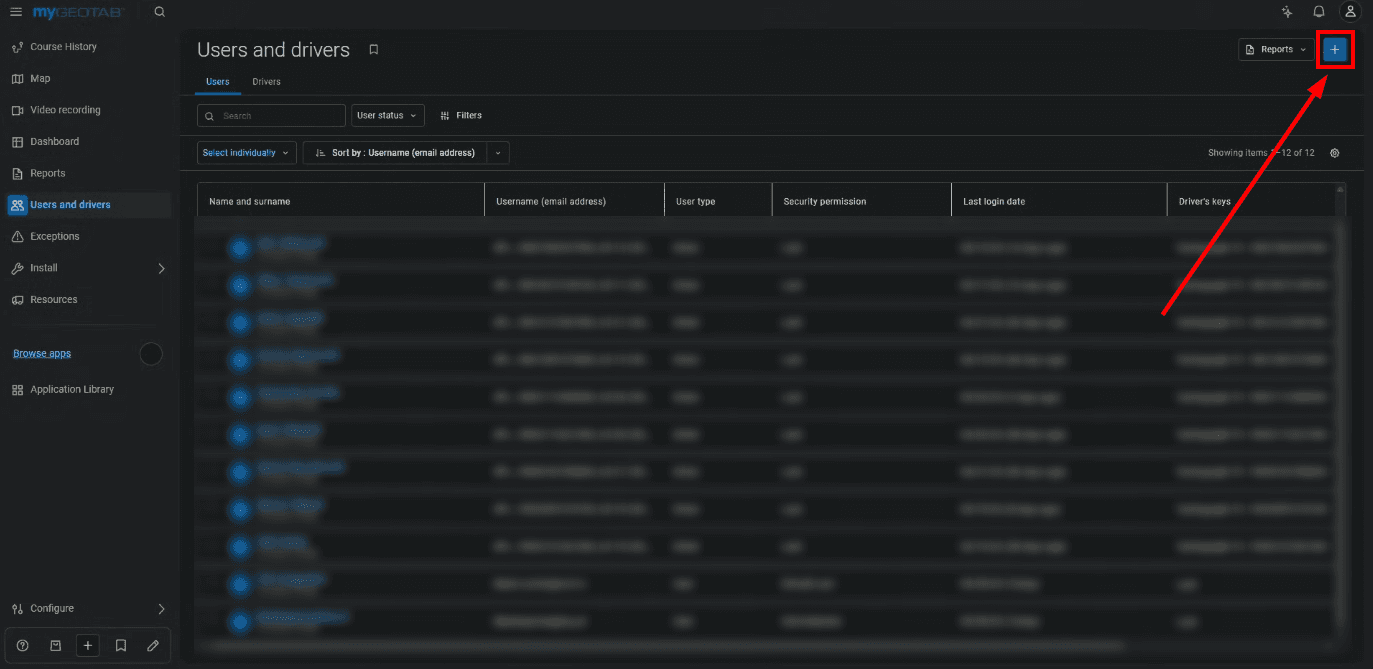
6. Click the "+" button in the top-right corner to add a new user
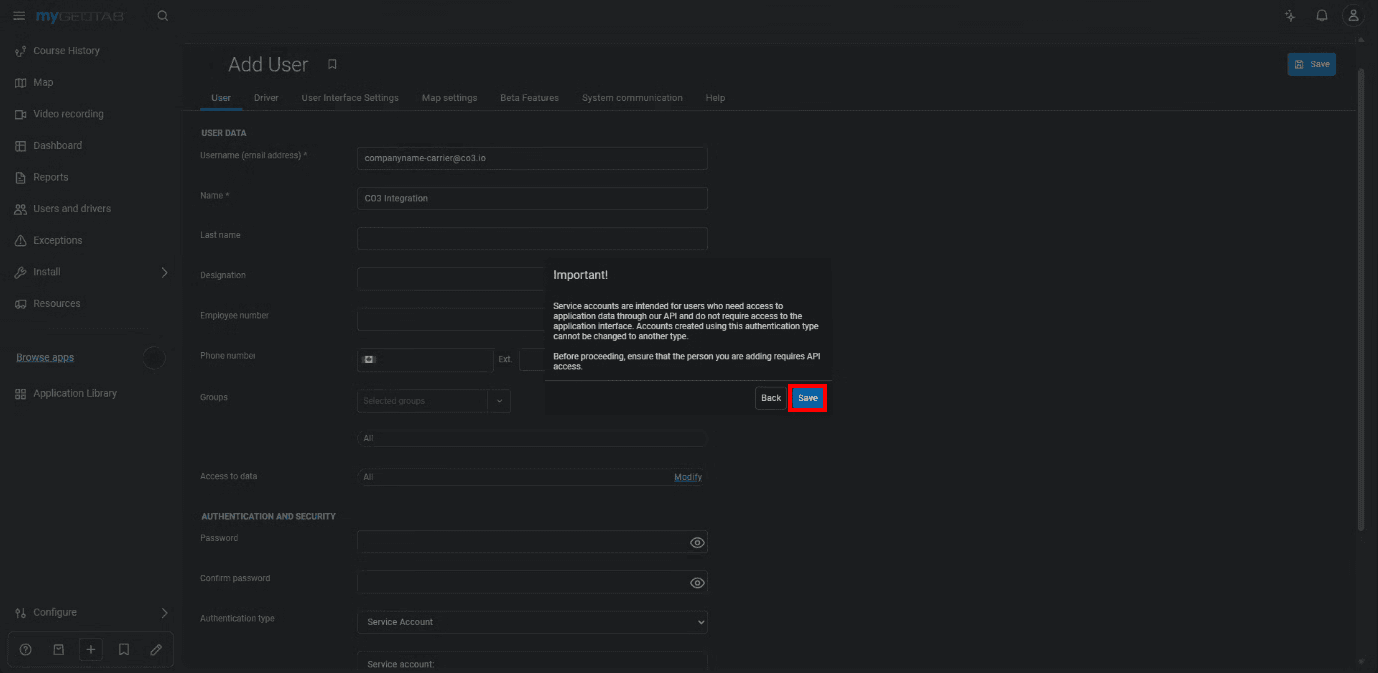
7. Enter a username in the format "companyname-carrier@co3.io". In the "First name" field, enter "CO3 Integration". Set a strong password, select "Service Account" as the "Authentication type", and set "Security clearance" to "Default User" (or another role with view-only permissions). Click "Save"

8. If a service account confirmation prompt appears, confirm it by clicking "Save"
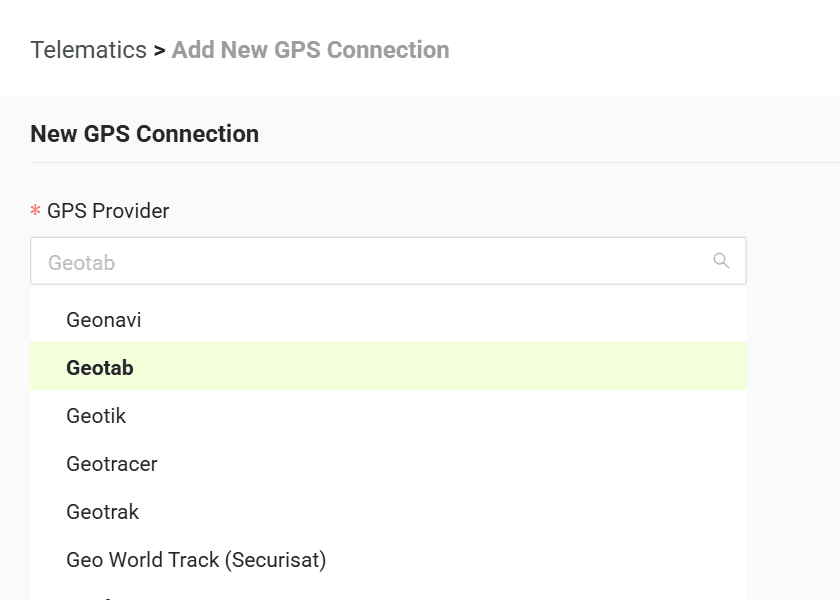
9. Go to the "Telematics" tab in CO3 and select "Add New GPS Connection" or open the link https://track.co3.io/#/telematic-accounts/create
10. Select your GPS provider from the list
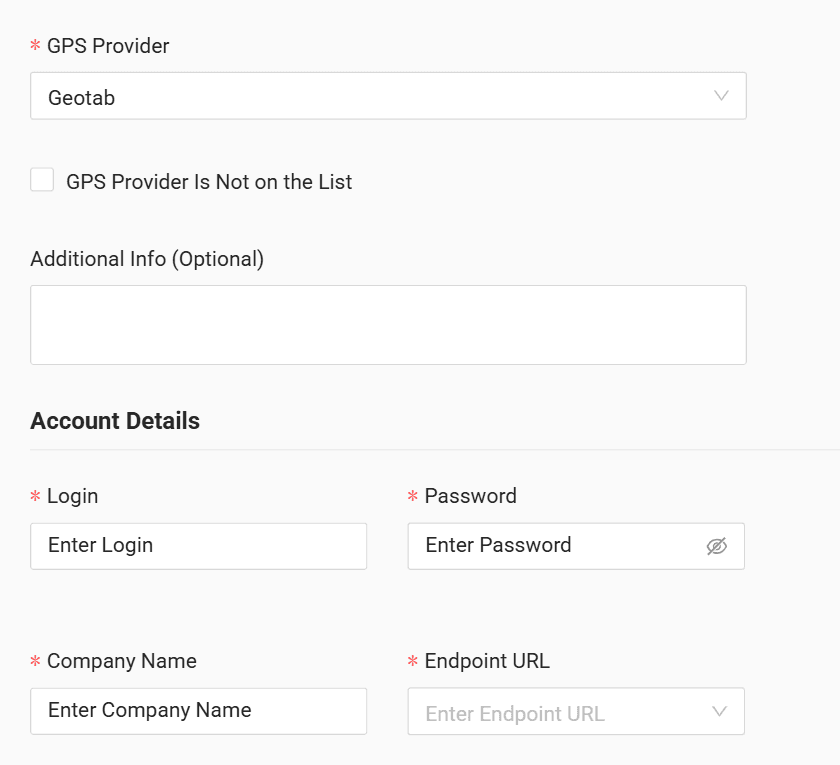
11. Fill in the CO3 form with the account credentials you created: username, password, database name (company name), and the appropriate URL
12. Click "Submit"
13. If the access data is correct, the account configuration will be successful
Do you have questions?
Contact us at carrier@co3.io