September 09, 2026—5 min
Descartes MacroPoint
1. Contact Descartes MacroPoint to have the "data replication / export" service activated If it is already active, go to the next step
2. Go to the "Telematics" tab on the CO3 website and select "Add New GPS Connection" or click the link https://track.co3.io/#/telematic-accounts/create
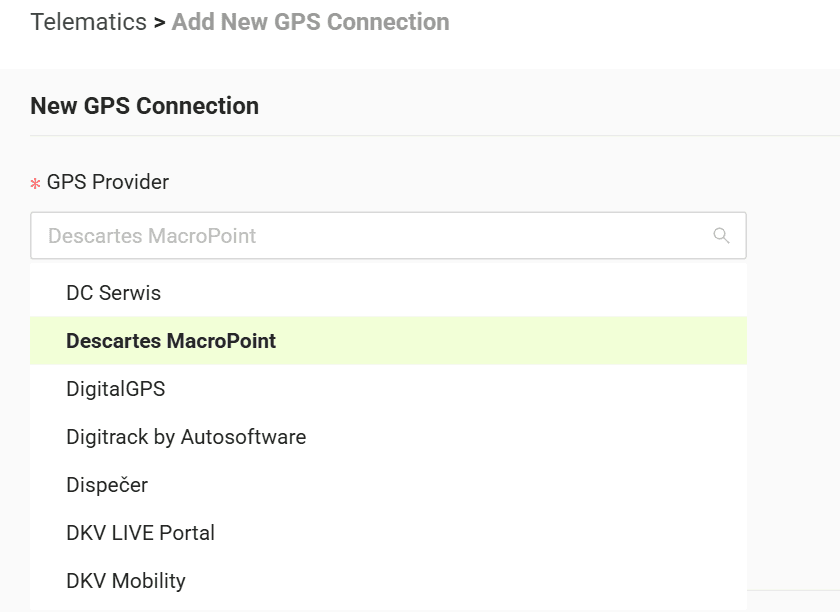
3. Select your GPS provider from the list
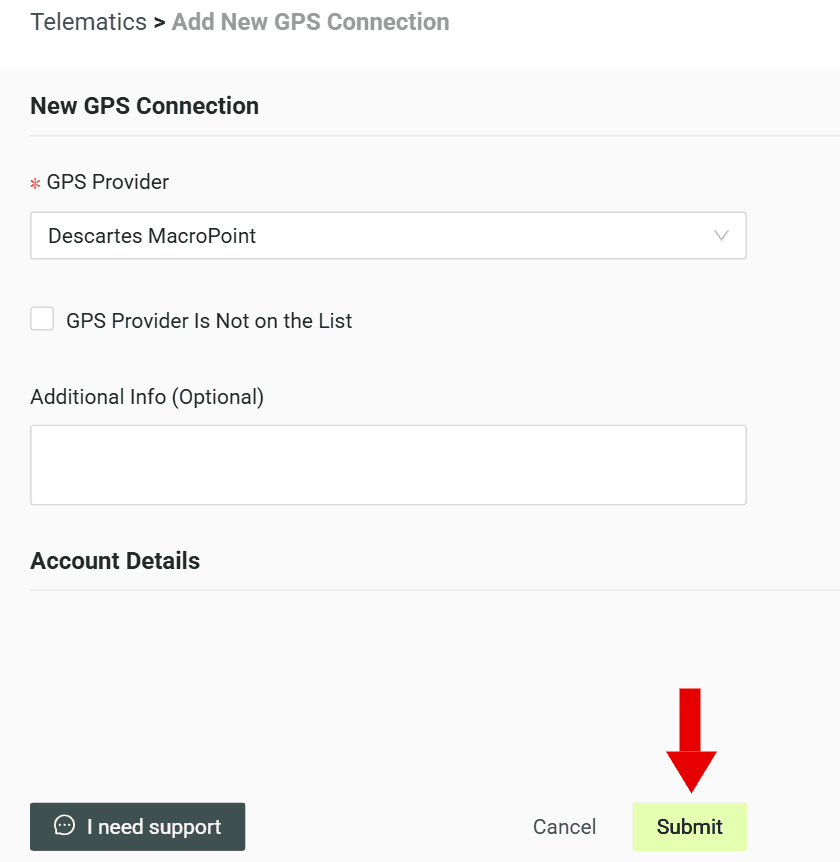
4. Click "Submit" to create the account
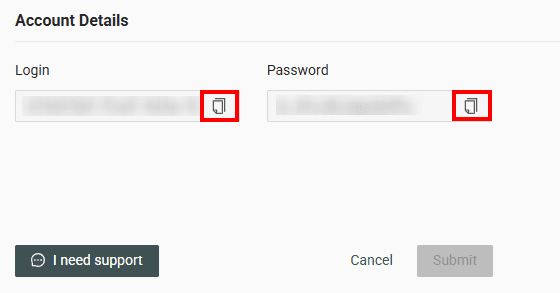
5. Copy the generated credentials (Login and Password)
6. Pass the copied credentials (Login and Password) and your Aljex customerID to your Descartes MacroPoint representative Note: only loads created after the integration is set up are sent automatically. Older loads have to be tagged manually in MacroPoint: edit the load, click "Add Update" and select the account created for CO3 in the "send updates to" field
7. Once you receive confirmation that the data is being sent to CO3, forward this information to CO3 at carrier@co3.io
Do you have questions?
Contact us at carrier@co3.io