July 14, 2025—5 min
Abax
1. If you do not have an ABAX developer account, create it here: https://account.abax.cloud/Identity/Account/Register This is not your regular ABAX account!
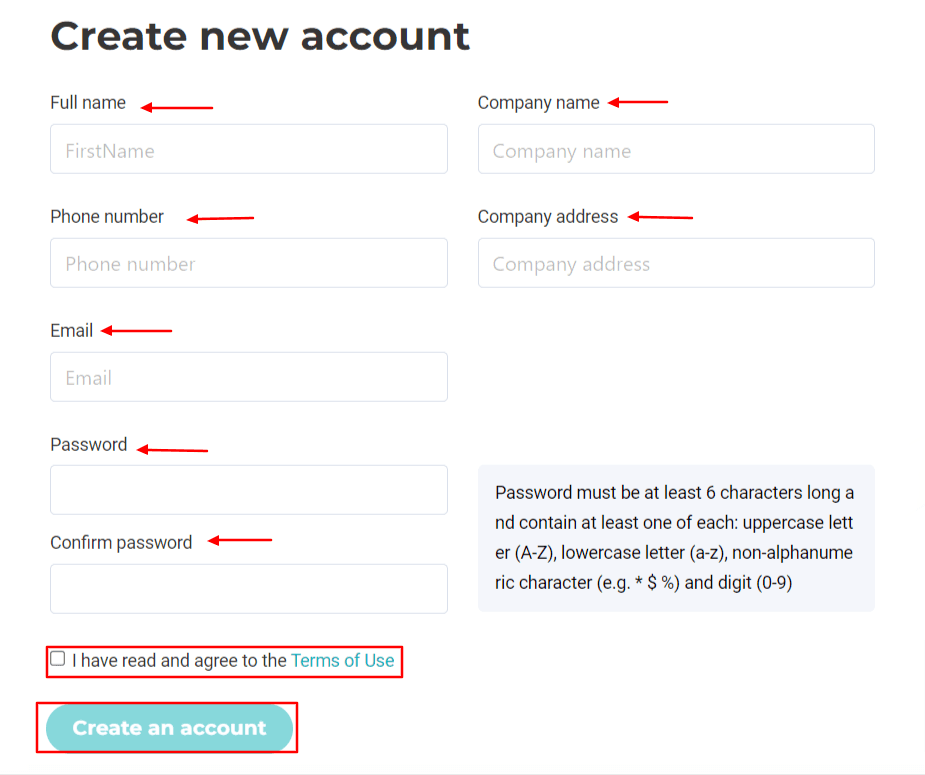
2. Next, go to https://developers.abax.cloud and click "Login" in the top right corner
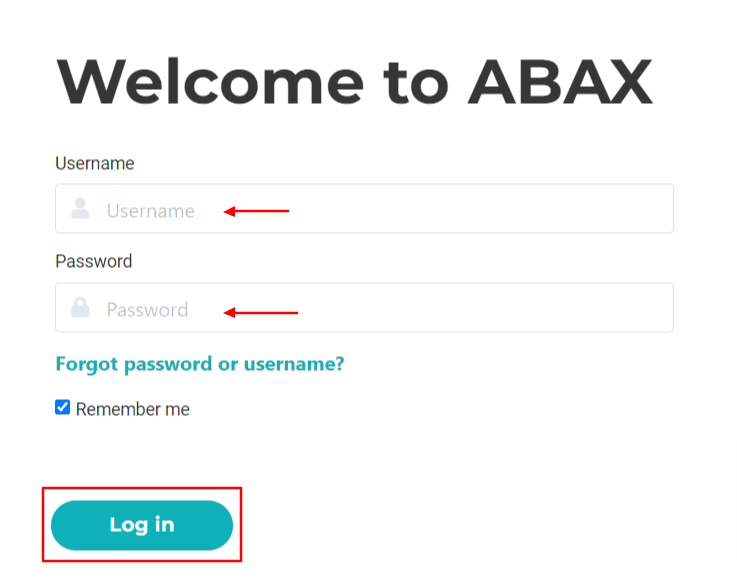
3. Log in to ABAX developer account
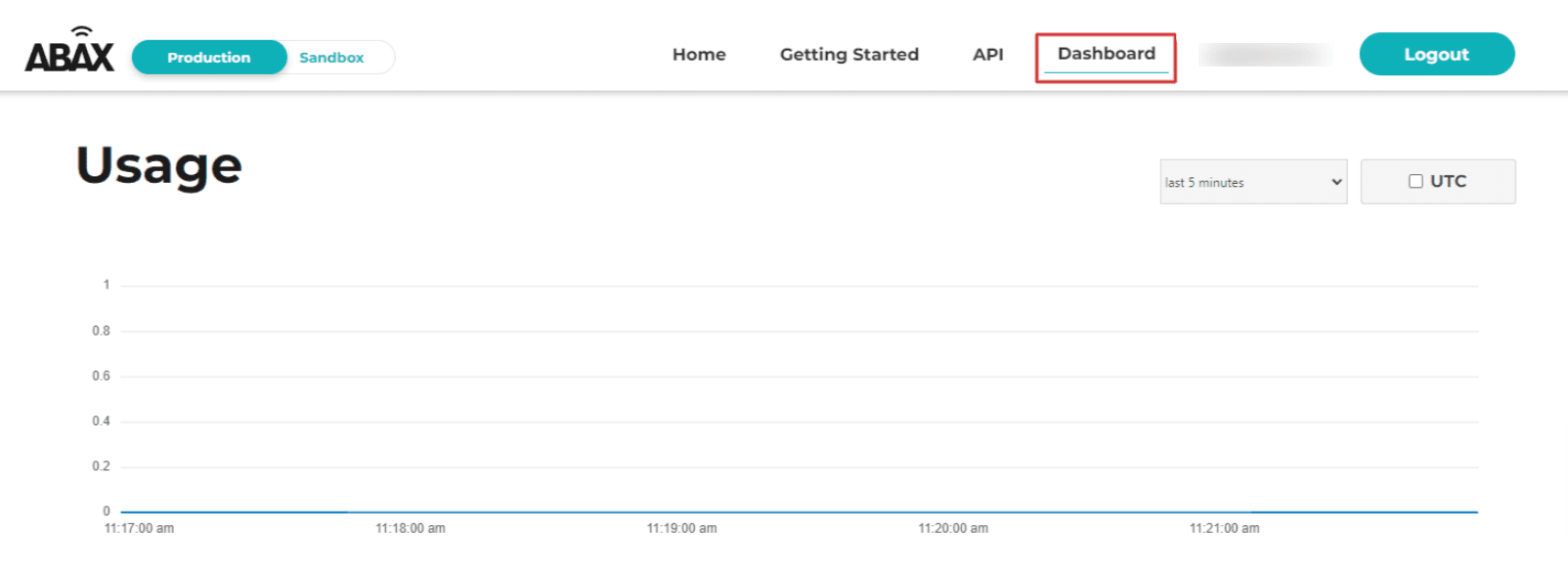
4. Select "Dashboard"

5. Select "Create API Credential"
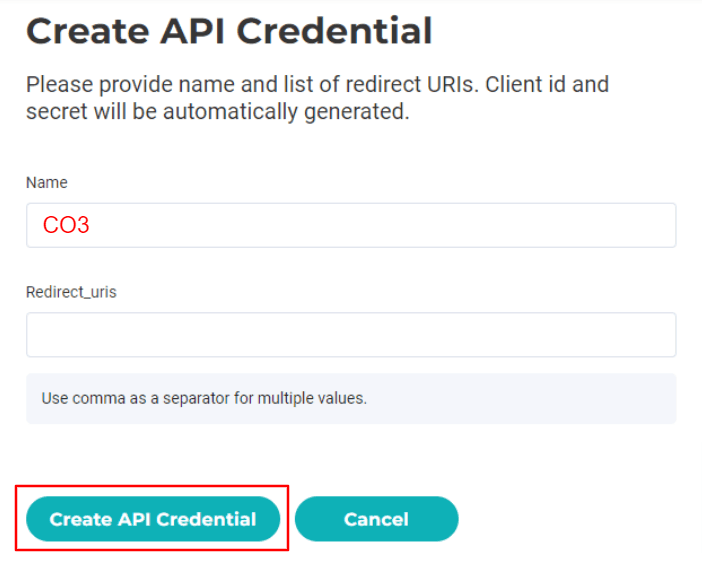
6. Name your integration, enter 'https://localhost' in the Redirect_urls field, and click "Create API Credential"

7. Save Client ID and Client Secret
8. Send Client_ID to api@abax.com and ask ABAX to connect it to your integration
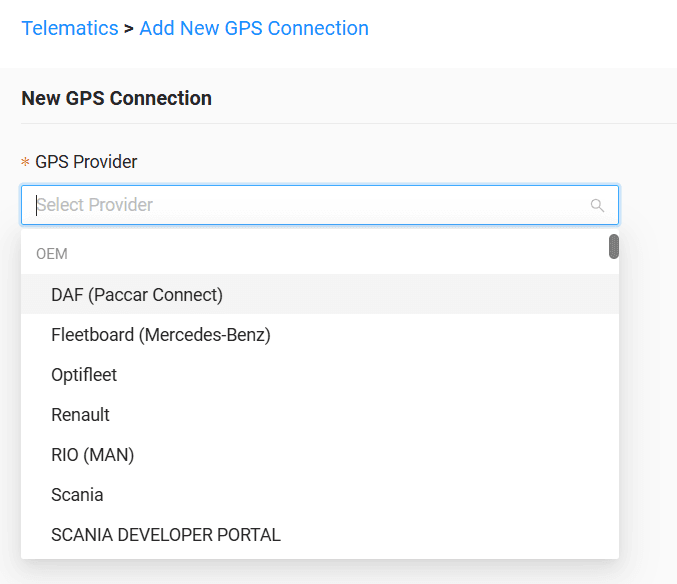
9. When ABAX confirms the connection, go to the "Telematics" tab on the CO3 website and select "Add New GPS Connection" or click the link https://track.co3.io/#/telematic-accounts/create
10. Select your GPS provider from the list
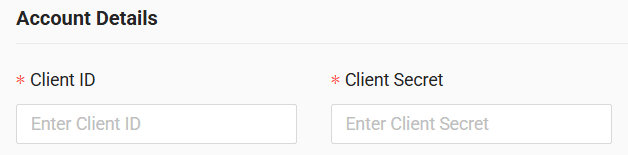
11. Enter Client ID and Client Secret in the form
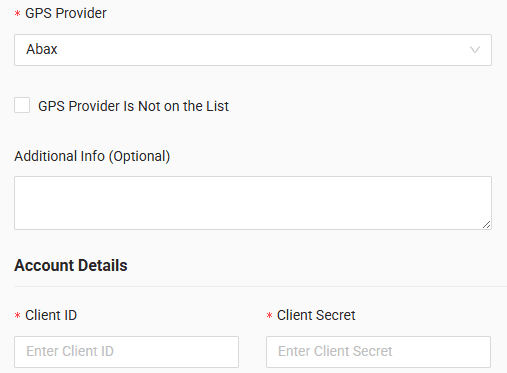
12. Click "Submit"
13. If the access data is correct, the account configuration will be successful
Do you have questions?
Contact us at carrier@co3.io